
Who is behind this. Pro Skill Packs is a small independent publisher of ready-made skills and fill-in kits. Every one is run on real examples before release.
- How we test
- 30-day refund, no questions about why
- Contact page, or write to kaiventura.founder@gmail.com
A prospect's website and a line on what you sell.
A three-email sequence and two subject lines, each built on something visible on their site, with the page it came from.
Before and after
Taken from the skill's README.
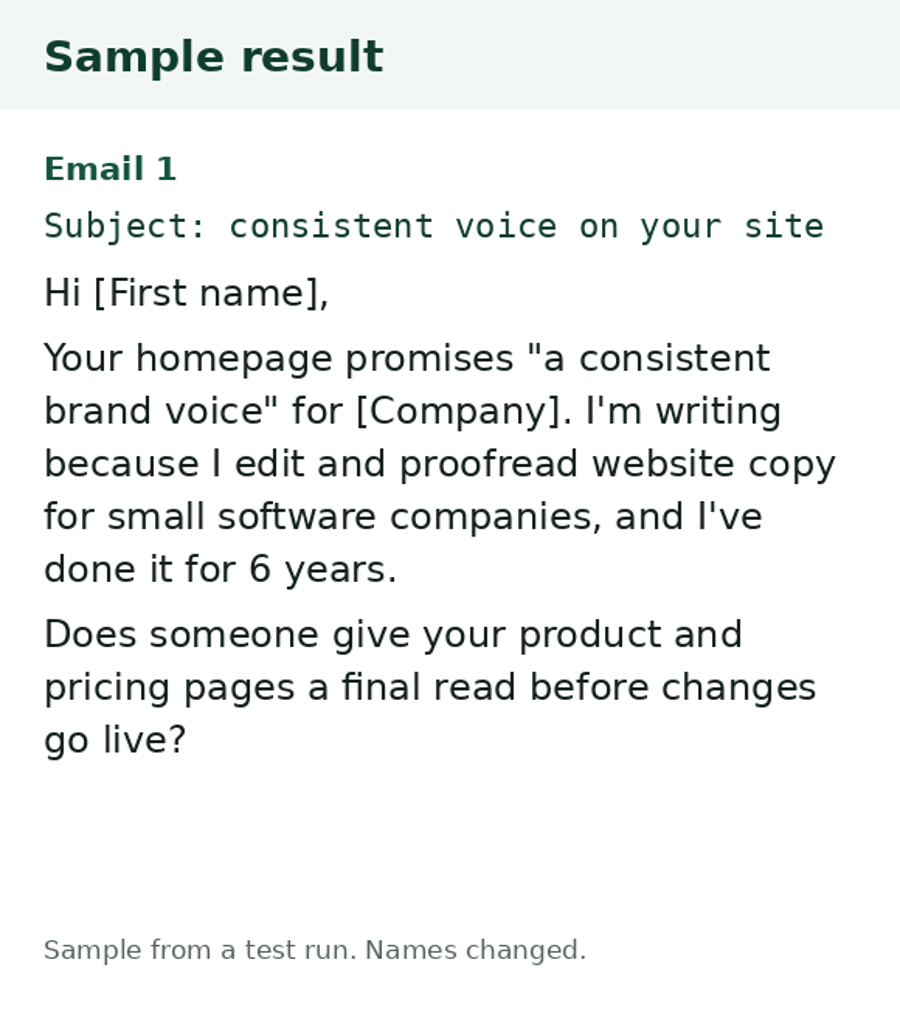
Before: Generic opener many cold emails start with: "I hope this finds you well. I came across your company and was impressed by your innovative approach..."
After (skill output, from a real test run): Test run on a small software company's homepage. Email 1, unedited: "Your homepage promises to 'make your writing correct and clear'. I noticed you also run separate pages for a free grammar checker, paraphrasing tool and AI proofreader. I edit and proofread website copy for small software companies. I have 6 years of editing experience. Who looks after the copy on those tool pages?" The run also listed the four observations with their pages, said it could not tell who owns the copy, and told the tester to check the live articles page before using email 2.
See it run
What it does
Give it one prospect's website and a line on what you sell. You get a three-email sequence (day 0, 3 and 8) and two subject lines. Each email rests on something actually visible on the site, listed in a table with the page it came from. It will not invent a result, a client or a shared connection.
How it was tested
What you can check yourself. The sample result on this page, the list of what is in the file, and the 30-day refund. There are no ratings yet, because nobody has reviewed it yet.
How we tested it.
1 real-data run on a public software company's website (Claude Sonnet). Output read and checked: every observation traced to a page, no invented claims.
Tested on a real example before release. The example is shown in the Before and after section above.
How we test, what we do not do, and which assistants we ran it on.
Limits
- It reads up to three public pages. Sites that block fetching need you to paste the text.
- It does not find email addresses or recipient names. Use [First name] until you have a real contact.
- It writes the emails; it does not send them or check deliverability. Add a real sender identity and an opt-out, and check the rules for the recipient's country. This is not legal advice.
- It cannot know whether your proof point is true. You confirm it.
Works with
Works in ChatGPT or any chatbot: you paste in your details and it writes the result. Reading the site needs a web fetch tool in your assistant, otherwise paste the text.
Where to start
- Try the free one first. Cold Email Checker: Give it a cold email draft and the prospect's page text. Get a verdict, a claims table and a tightened version. Free, MIT-licensed.
What is in the download
Read from the real file.
LICENSE.txtREADME.mdSKILL.mdcold-email-from-a-website-prompt-card.pdfprompt.md
Get it
- You get: a zip file (double-click it to open it).
- Checkout: Gumroad opens on this page. Click Add to cart, enter your email and card details, and check the total, with any VAT, before you pay. Prices here are in US dollars.
- After you pay: a download page opens right away with the zip file, and Gumroad gives you a receipt there that you can resend. Open it and follow the README.
One-time payment. Updates to this version are free. Questions or a refund: reply to your receipt within 30 days, or write to kaiventura.founder@gmail.com.
Using it with an AI assistant
- Unzip the download. It holds the
cold-email-from-a-websitefolder, a README and the licence. - Put the
cold-email-from-a-websitefolder where your assistant looks for skills. The generic path is.agents/skills/(ornpx skills addfrom a folder). Tool-specific paths:- Claude Code:
~/.claude/skills/(or.claude/skills/inside one project) - OpenAI Codex, Gemini CLI, Cursor and others:
.agents/skills/or the skills folder their docs name - claude.ai: zip the skill folder yourself, then Customize, Skills, the plus button, Create skill, Upload a skill (code execution must be on in Settings, Capabilities)
- ChatGPT or any chatbot: open the skill's
prompt.md, paste it into the chat, then paste your own text or link - Steps for each tool, with links to its official docs: how to install Agent Skills
- Claude Code:
- Ask for the job in plain words, for example: "Write a cold email sequence to https://example-company.com. I sell ... and I can back up this proof point: ...". The skill loads by itself.
Related
- Free guide to do it by hand: How to write a cold email from a prospect's website
- Cold Email Checker (Free): Give it a cold email draft and the prospect's page text. Get a verdict, a claims table and a tightened version. Free, MIT-licensed.
- More for people doing outreach and sales: Sales and outreach
Report a problem with this skill (GitHub, or write to kaiventura.founder@gmail.com).